
Text and titles
Add a title or any other words to your design, style them, move them into place, and copy or delete a text box.
A text box holds words that are not part of a person card, such as a family name above the tree. The editor calls a text box a view, so some buttons say view.
Add a text box
Where to find it: Top of the screen → Create Text
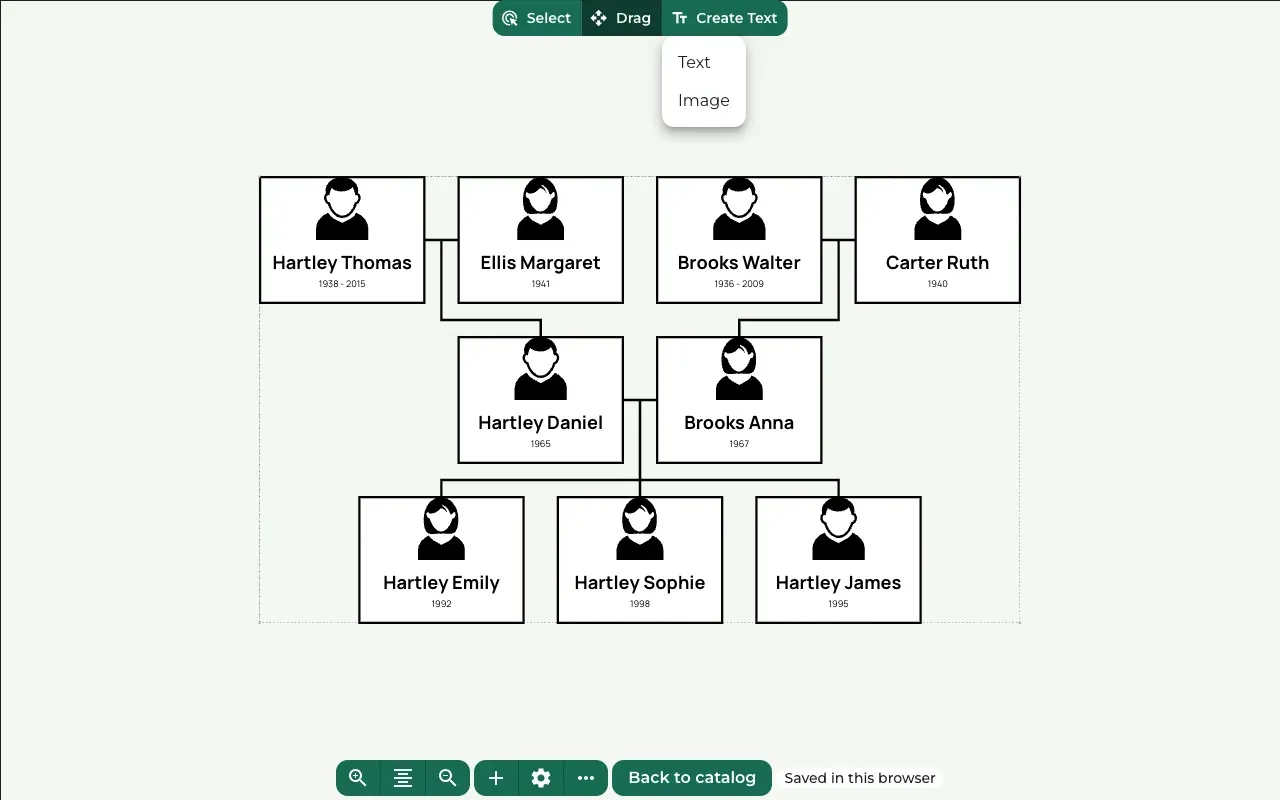
Press Create Text at the top of the screen. A small menu opens with Text and Image.
Choose Text. Then click the spot on the canvas where the text should go. An empty box appears there, and the View settings panel opens on the left.
Write the text
Where to find it: View settings → Text
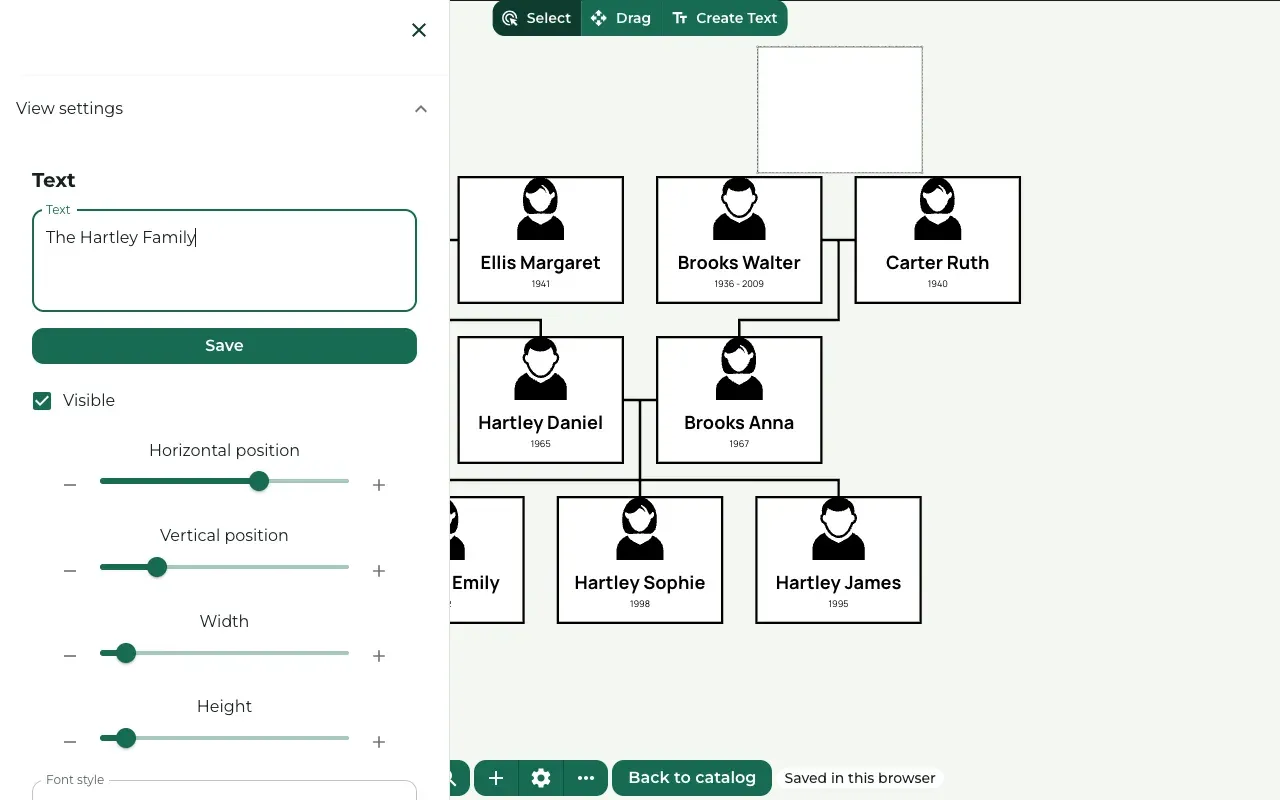
Type your words in the Text field and press Save under it.
Further down, Font style, Font size and Font color change how this text looks. Use default setting keeps the same look as the rest of the design.
Move and resize it
Where to find it: View settings → Horizontal position and Vertical position
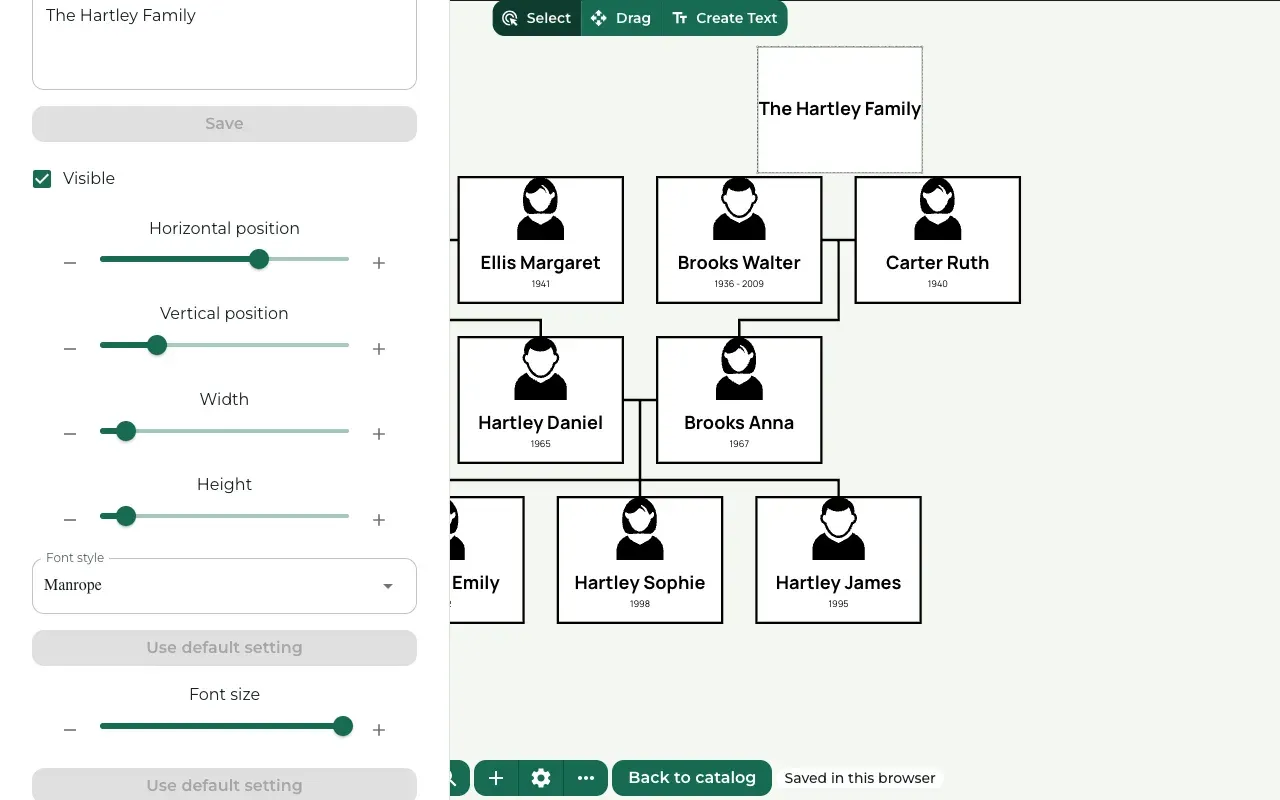
Move the Horizontal position slider to move the box left or right, and Vertical position to move it up or down.
Width and Height change the size of the box. Make it wider when the words go past its edges.
Untick Visible to hide the box without deleting it.
Copy, paste and delete
Where to find it: Right-click the text box
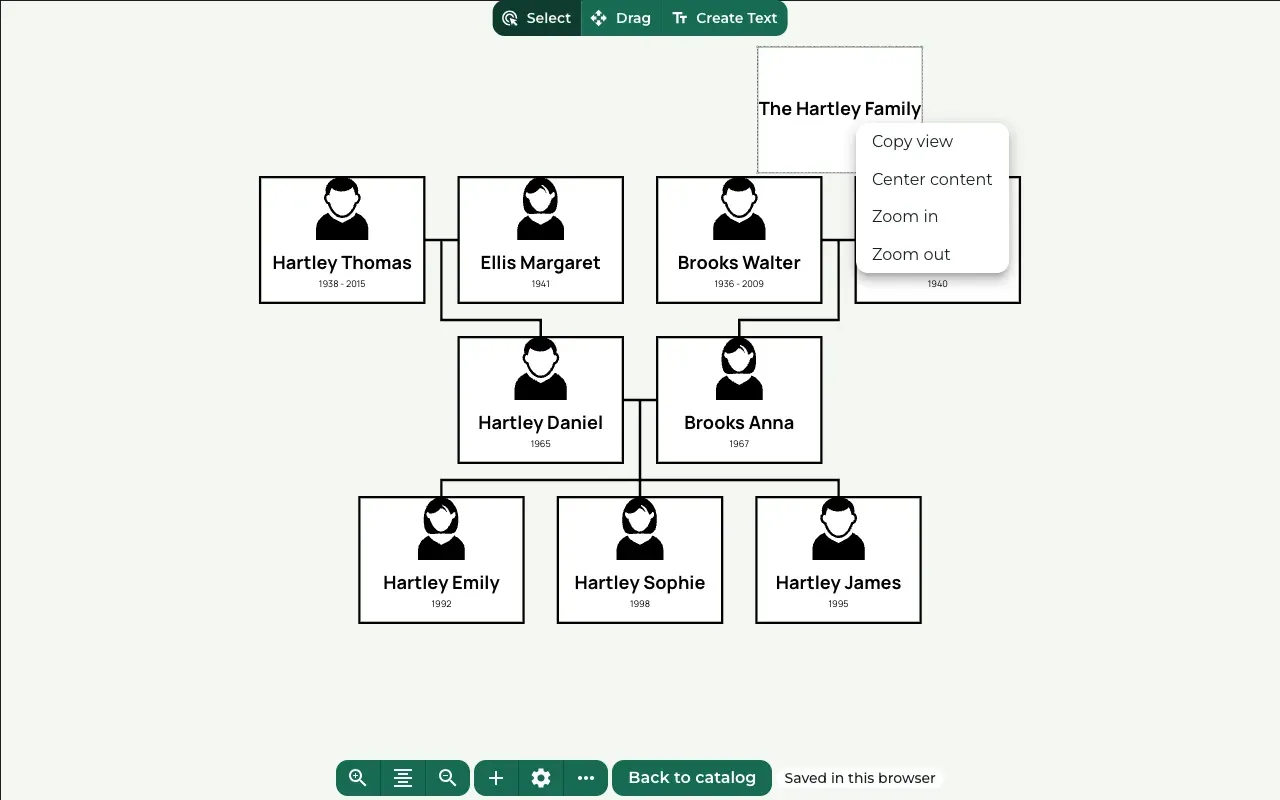
Right-click a text box and choose Copy view, or select it and press Ctrl+C (Cmd+C on a Mac).
Point at an empty part of the canvas and press Ctrl+V (Cmd+V on a Mac). The copy appears where the pointer is.
To delete a text box, select it and press Delete at the bottom of View settings, or press the Delete key.
Still stuck? Look for your question in the FAQ, browseall guides, or write to us.