
Colors, fonts and frames
Pick a card style, change the font and the colors, style the lines between people, and put a picture behind your tree.
These settings change the look of the whole design at once. Open them with the gear button at the bottom of the screen.
For a finished look in one click, start with Template Style at the top of Settings: each of the pre-built templates sets the background, cards, fonts, colours and lines together. Then fine-tune any of them with the settings below.
Card styles
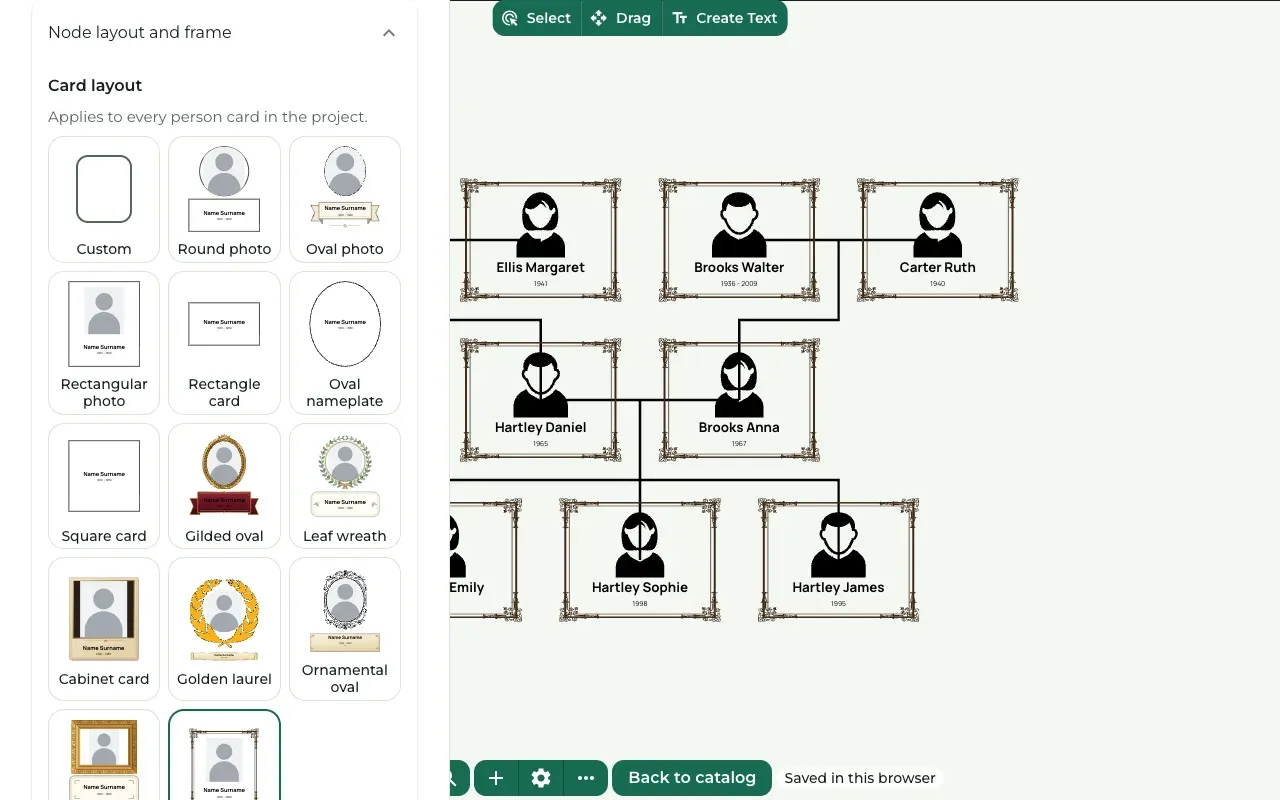
Where to find it: Settings (the gear button) → Settings → Node layout and frame → Card layout
Card layout shows ready-made styles for the person cards, such as Round photo, Rectangle card, Gilded oval, Leaf wreath, Cabinet card, Golden laurel and Victorian card. Click one, and every card in the project takes that style.
Custom keeps the settings you make yourself further down: Border style, Background color, Border color and Border width. Tick Transparent background or Transparent border to leave either one out.
Font and text color
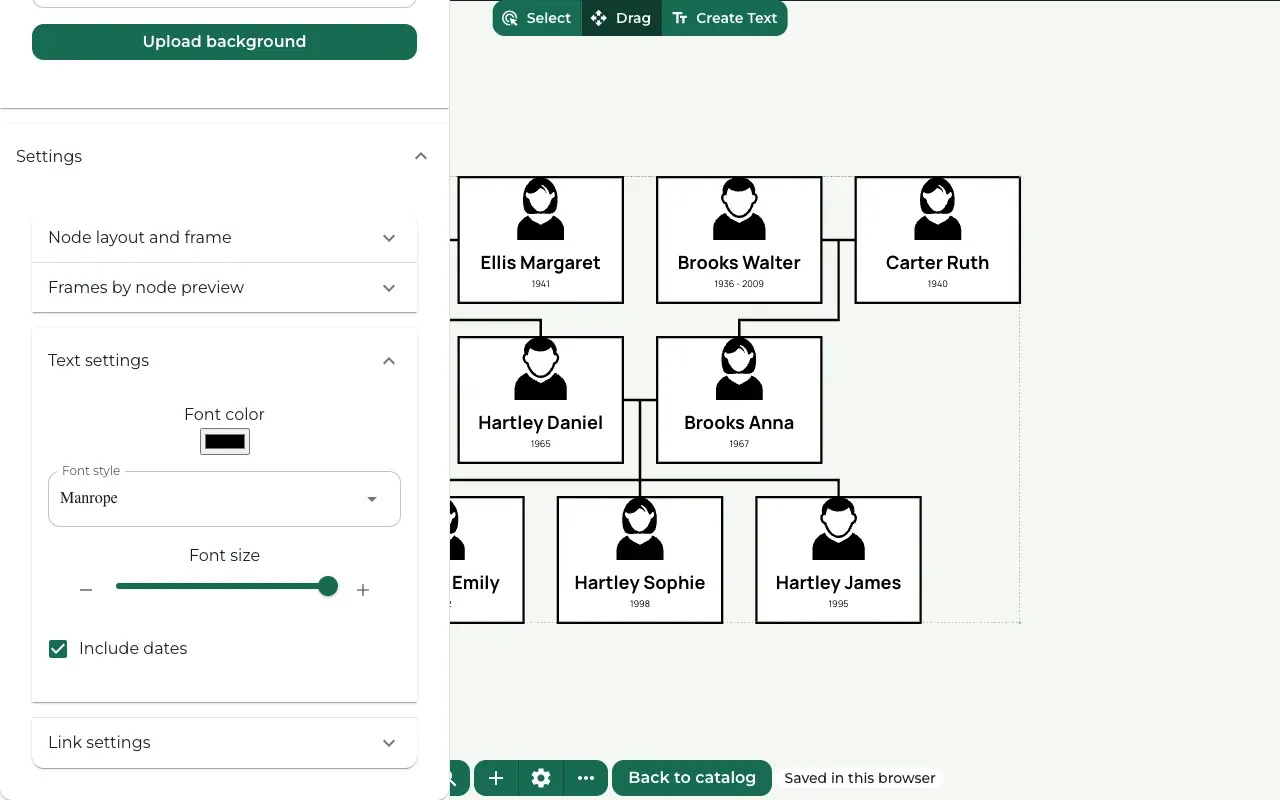
Where to find it: Settings (the gear button) → Settings → Text settings
Font color sets the color of the names and dates. Click the color box and pick a color.
Font style changes the font, and Font size makes the text bigger or smaller.
Untick Include dates to hide the birth and death years on the cards.
Lines between people
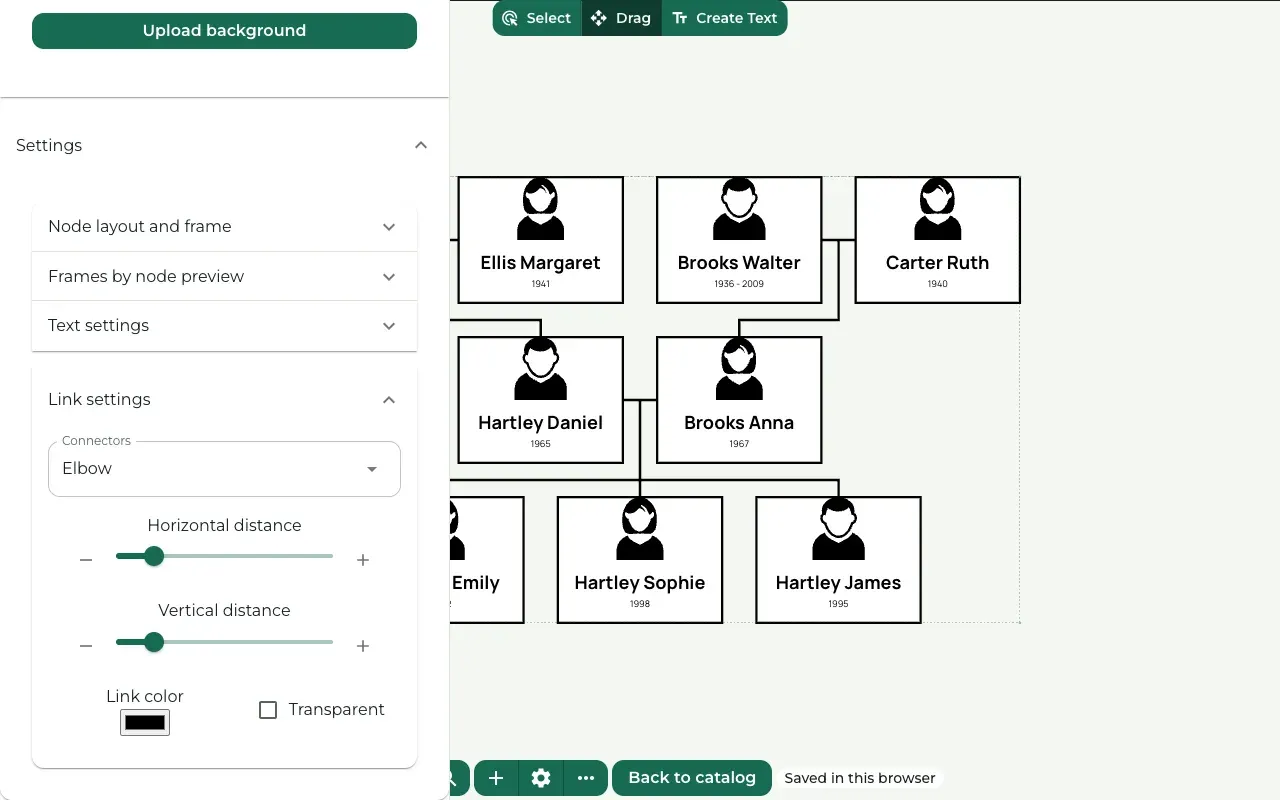
Where to find it: Settings (the gear button) → Settings → Link settings
Connectors sets the style of the lines, for example Elbow for straight lines with corners.
Link color sets the color of the lines. Tick Transparent to hide them.
A picture behind the tree
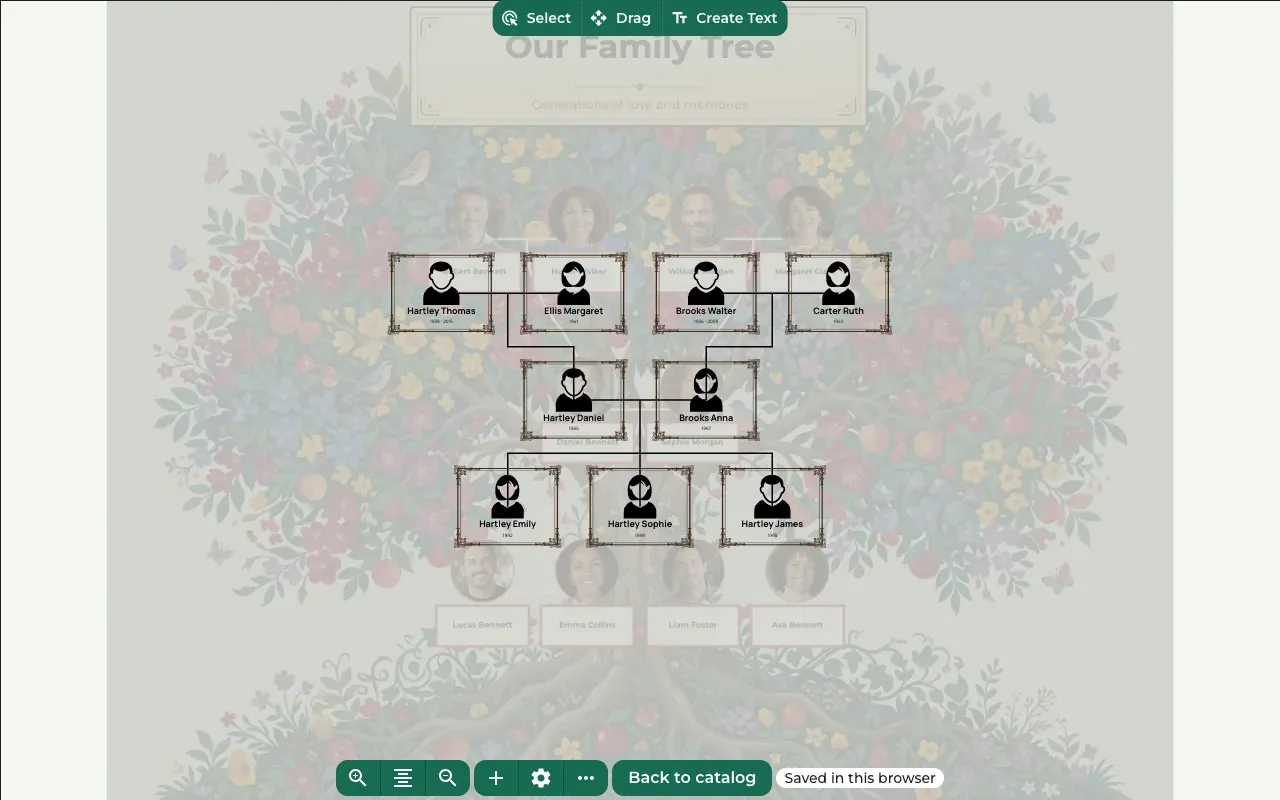
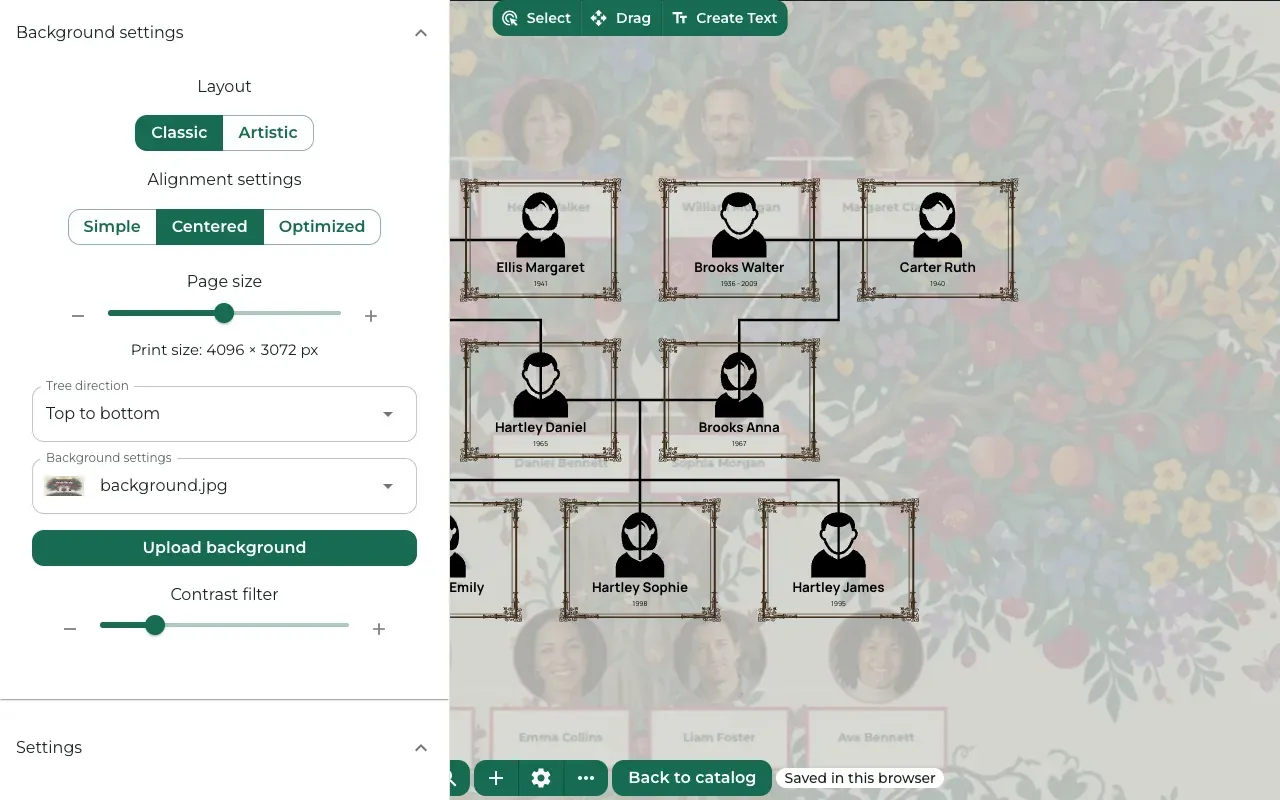
Where to find it: Settings (the gear button) → Background settings → Upload background
Press Upload background and choose a picture from your computer, such as a painting or a texture.
Once a background is set, a Contrast filter slider appears. Move it to fade the picture or make it stronger, so the names stay easy to read.
The Background settings list above the button holds the backgrounds you already used in this design.
Still stuck? Look for your question in the FAQ, browseall guides, or write to us.