
Layout and tree direction
Arrange the people as a classic chart or on a tree crown, choose which way the tree grows, and set the space between cards.
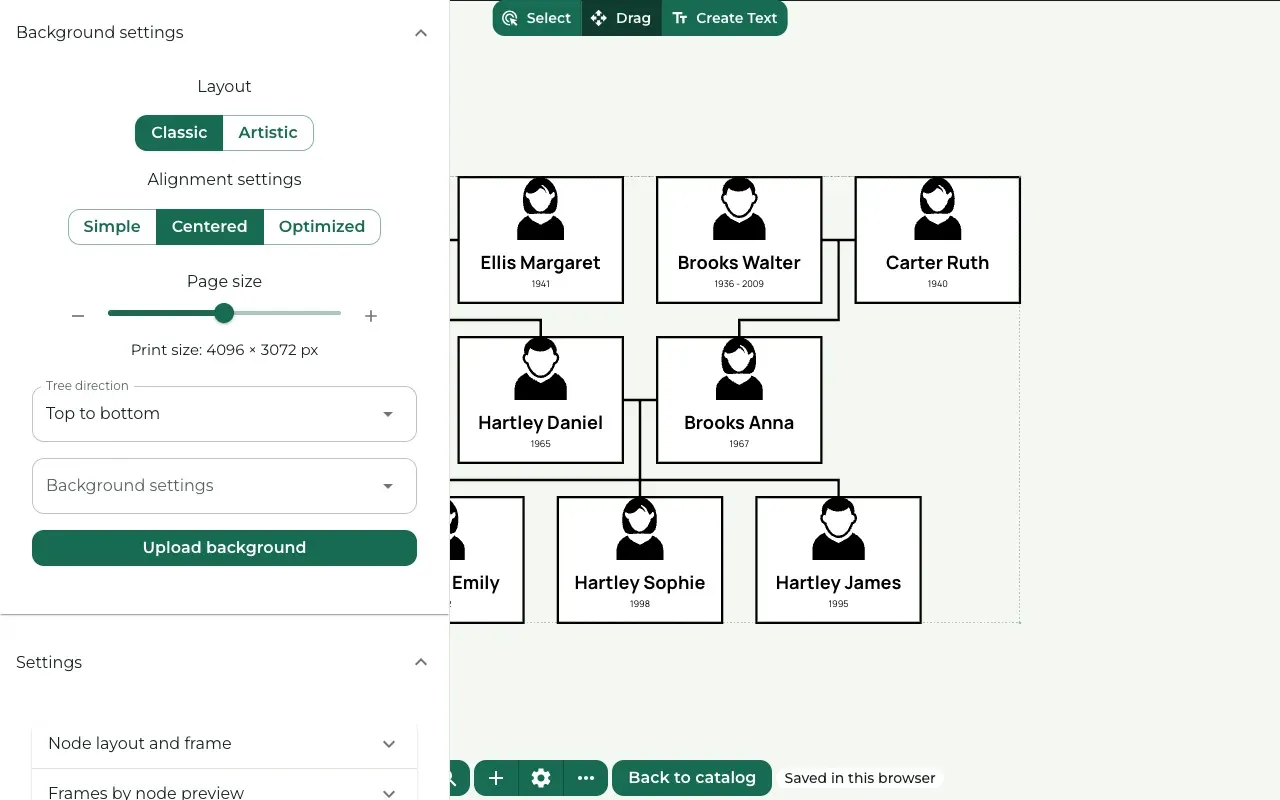
Layout settings decide where each person card sits on the page. Names, dates and photos stay the same when you change them.
Classic or Artistic
Where to find it: Settings (the gear button) → Background settings → Layout
Classic places each generation in its own row, or in its own column when the tree grows sideways.
Artistic arranges the people on the crown of a tree.
With Classic, Alignment settings appears below. Try Simple, Centered and Optimized, and keep the one that looks best for your family.
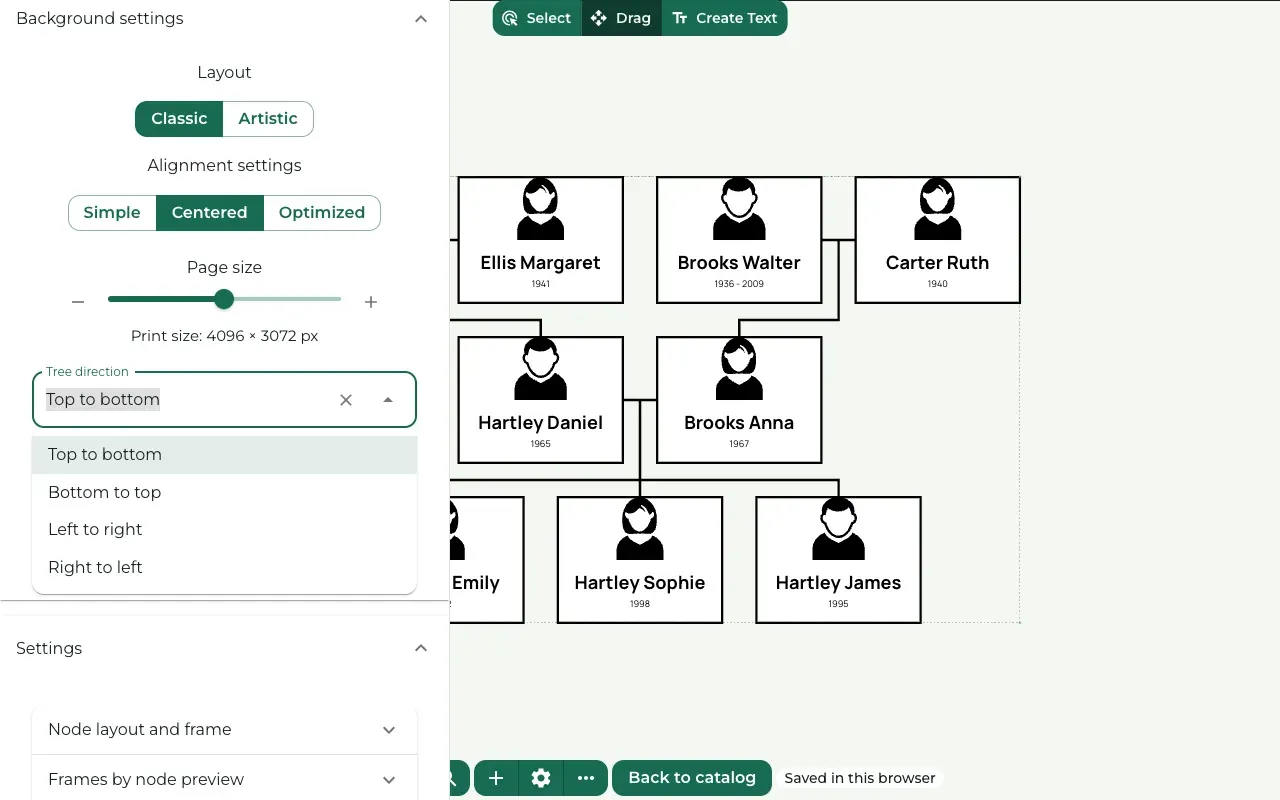
Tree direction
Where to find it: Settings (the gear button) → Background settings → Tree direction
Tree direction sets which way the generations grow: Top to bottom, Bottom to top, Left to right or Right to left. Click the field and choose one. The tree changes at once.
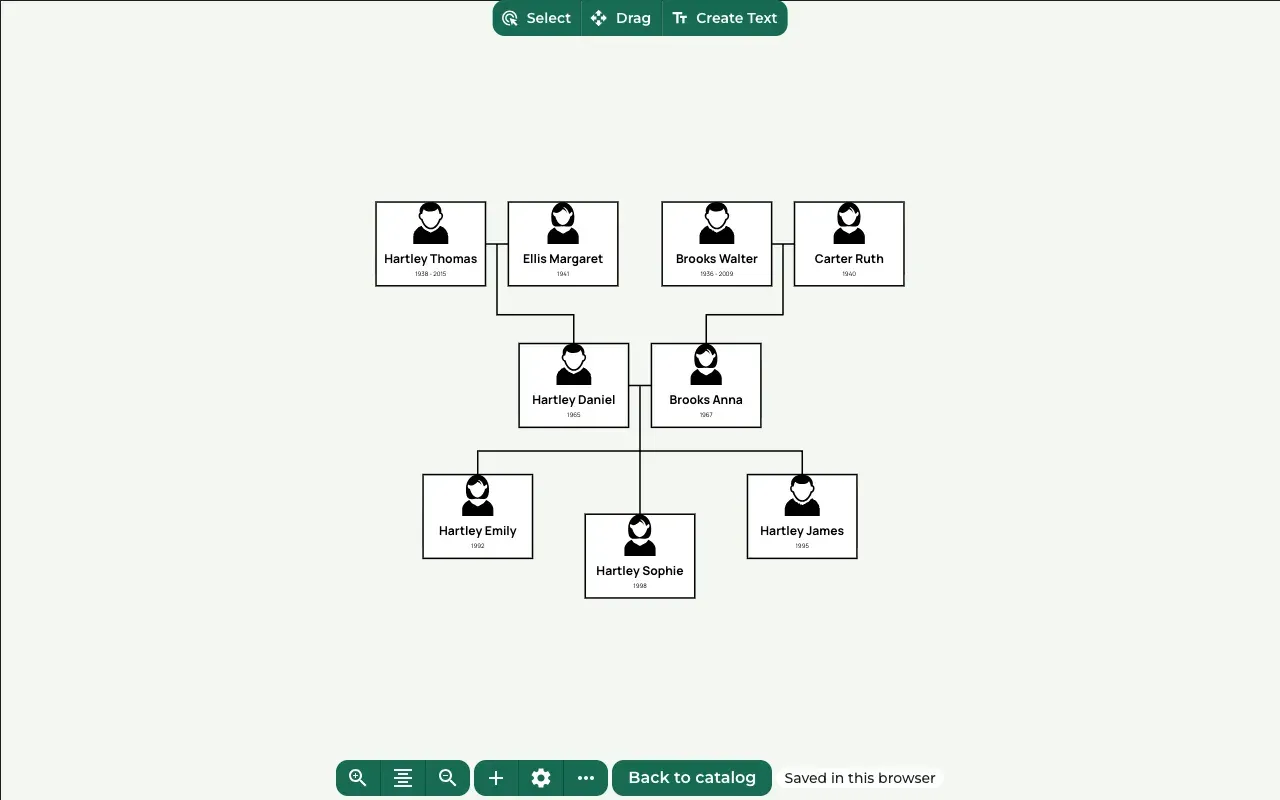
The Artistic layout
Where to find it: Settings (the gear button) → Background settings → Layout → Artistic
Press Artistic. The cards move into the shape of a tree crown.
With Artistic, the tree keeps its own order, so the alignment and direction settings are hidden. Press Classic to go back.
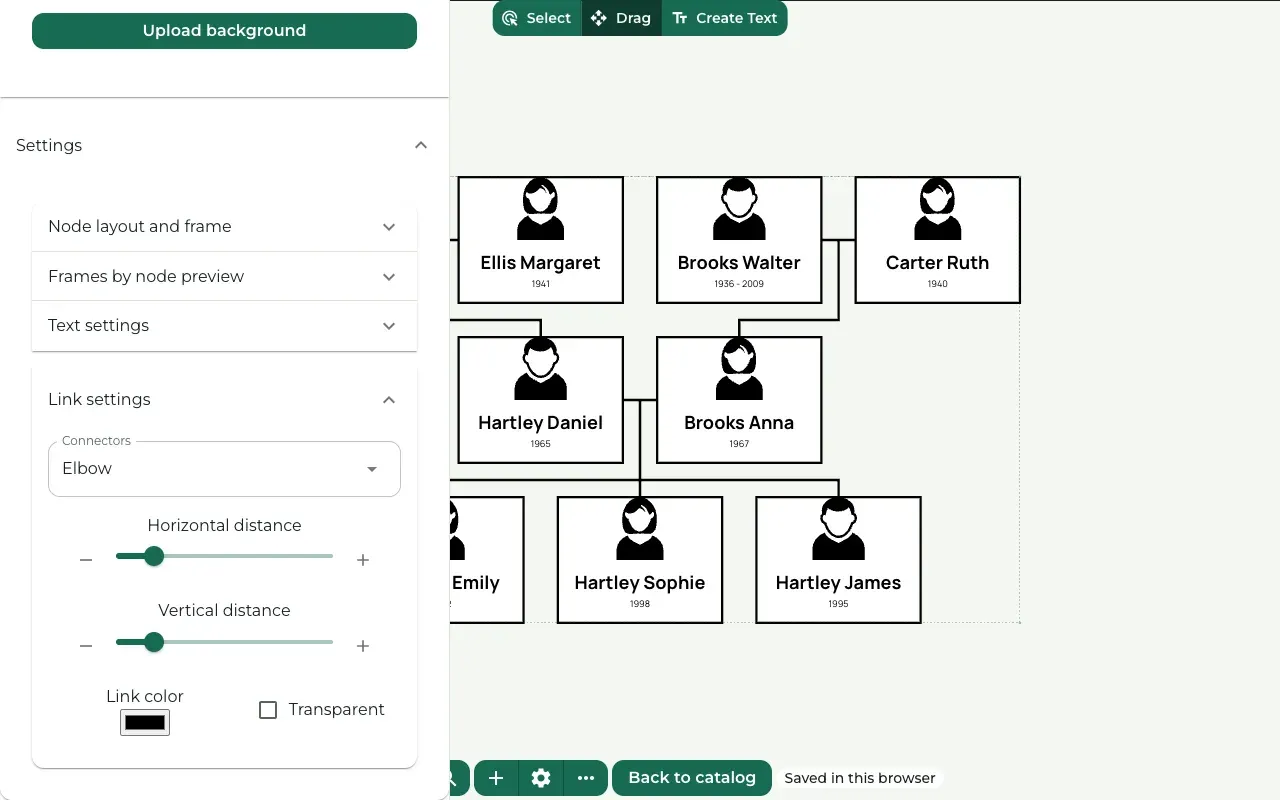
Space between cards
Where to find it: Settings (the gear button) → Settings → Link settings
Horizontal distance changes the space between cards side by side. Vertical distance changes the space between generations.
When names touch each other, add a little Horizontal distance, or make the cards wider with WIDTH in Node layout and frame.
Still stuck? Look for your question in the FAQ, browseall guides, or write to us.