
People and photos
Change a person's name and dates, add relatives, upload or remove photos, delete a person, and choose what every card shows.
Every person in your tree is a card. You change a person in the Person actions panel.
Change a person’s details
Where to find it: Click a person card → Person actions
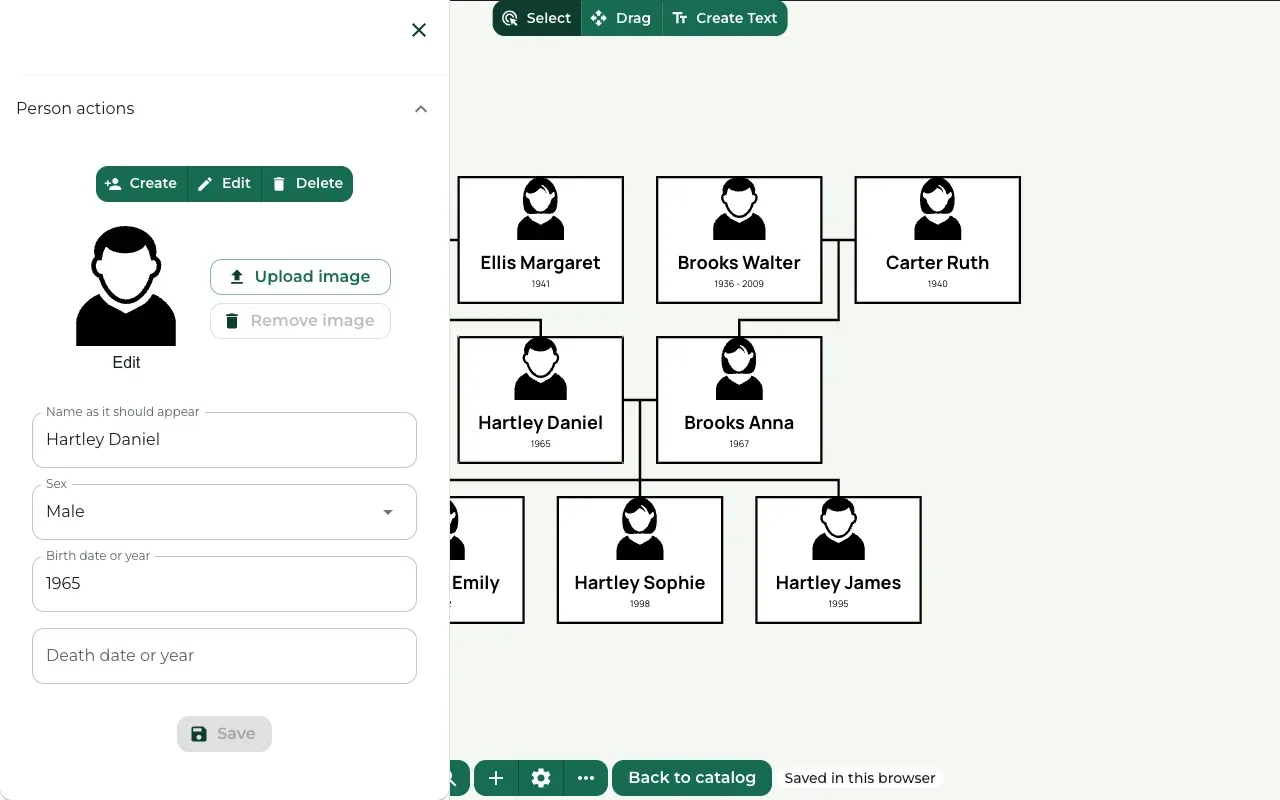
Click a person card. The Person actions panel opens on the left.
Type the name in Name as it should appear. Add a year or a full date in Birth date or year and in Death date or year. Choose an option in Sex.
Press Save to put the changes on the card.
Add a relative
Where to find it: Person actions → Create
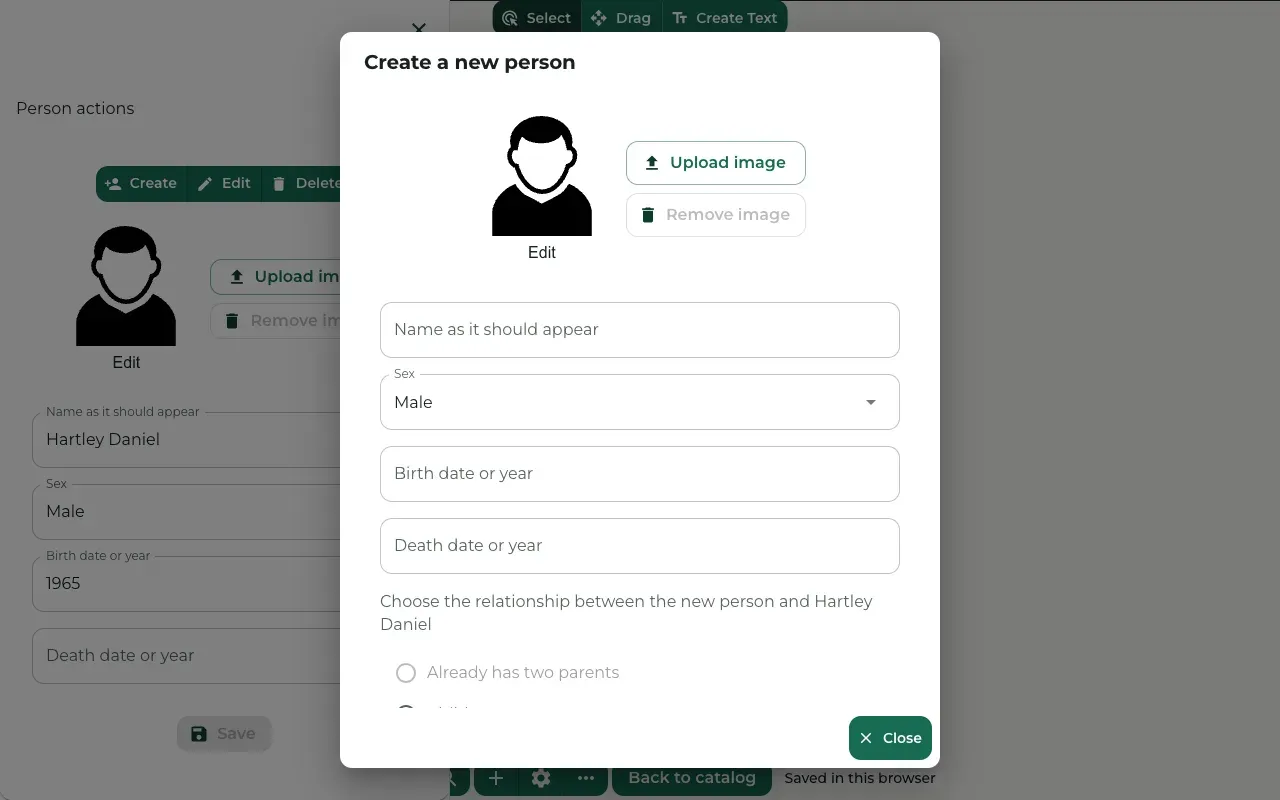
Select the person the new relative belongs to and press Create. The Create a new person window opens.
Fill in the name and the dates. Under Choose the relationship between the new person and, pick Parent, Child, Sibling or Spouse. A child added to one partner of a couple joins both partners.
Press Create at the bottom of the window. The new card joins the tree.
Upload or remove a photo
Where to find it: Person actions → Upload image
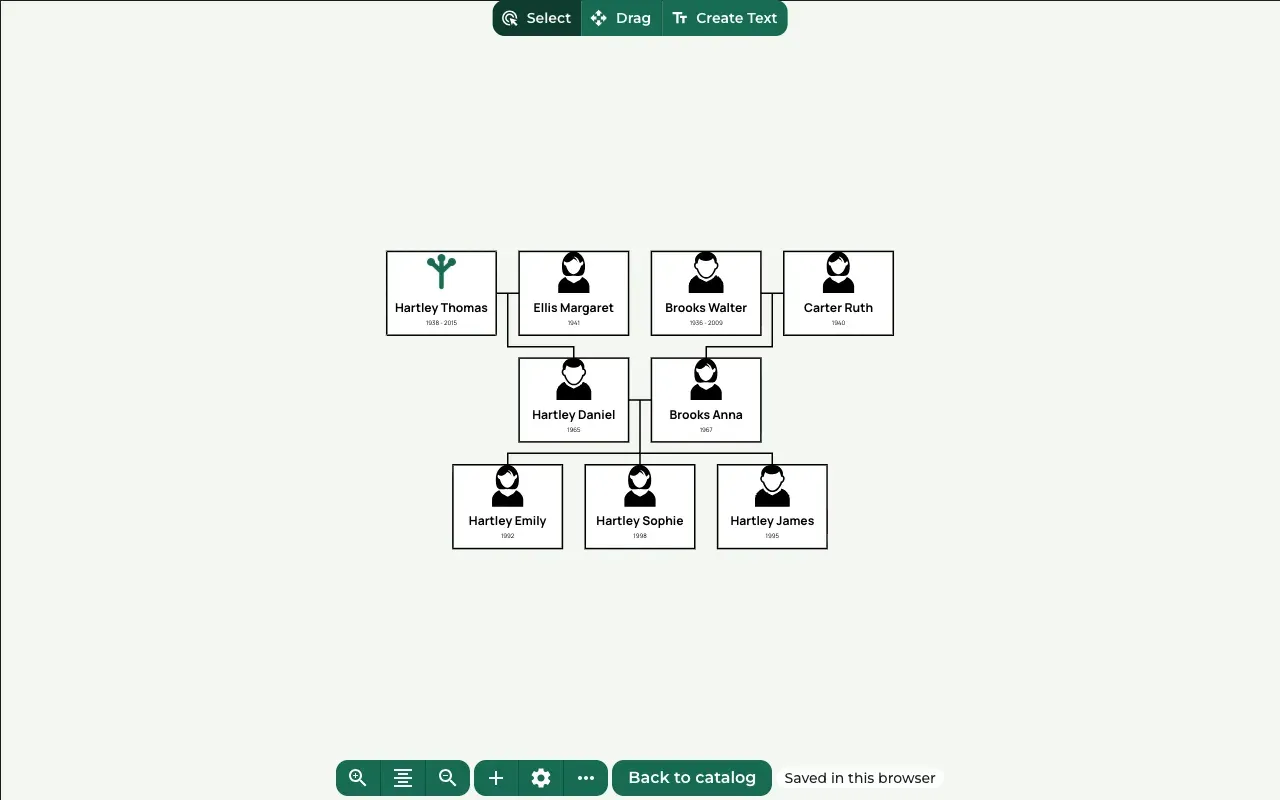
Select the person. Press Upload image and choose a photo from your computer. Press Save to put it on the card.
To take a photo off, press Remove image, then Save.
In the free editor, photos stay in your web browser. In your own projects, they are saved to your account.
Delete a person
Where to find it: Person actions → Delete
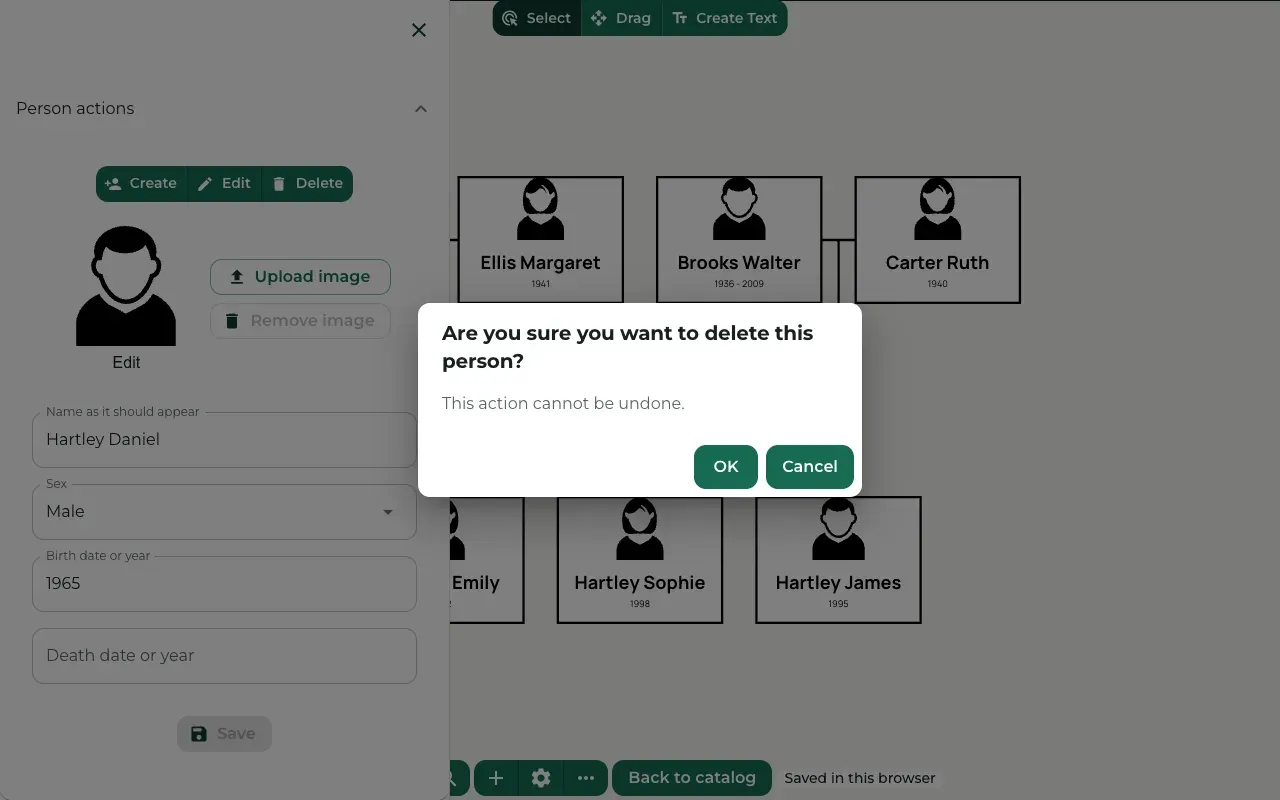
Select the person and press Delete. Treeshy asks: Are you sure you want to delete this person? Press OK to delete the person, or Cancel to keep them.
A deleted person cannot be brought back.
Choose what every card shows
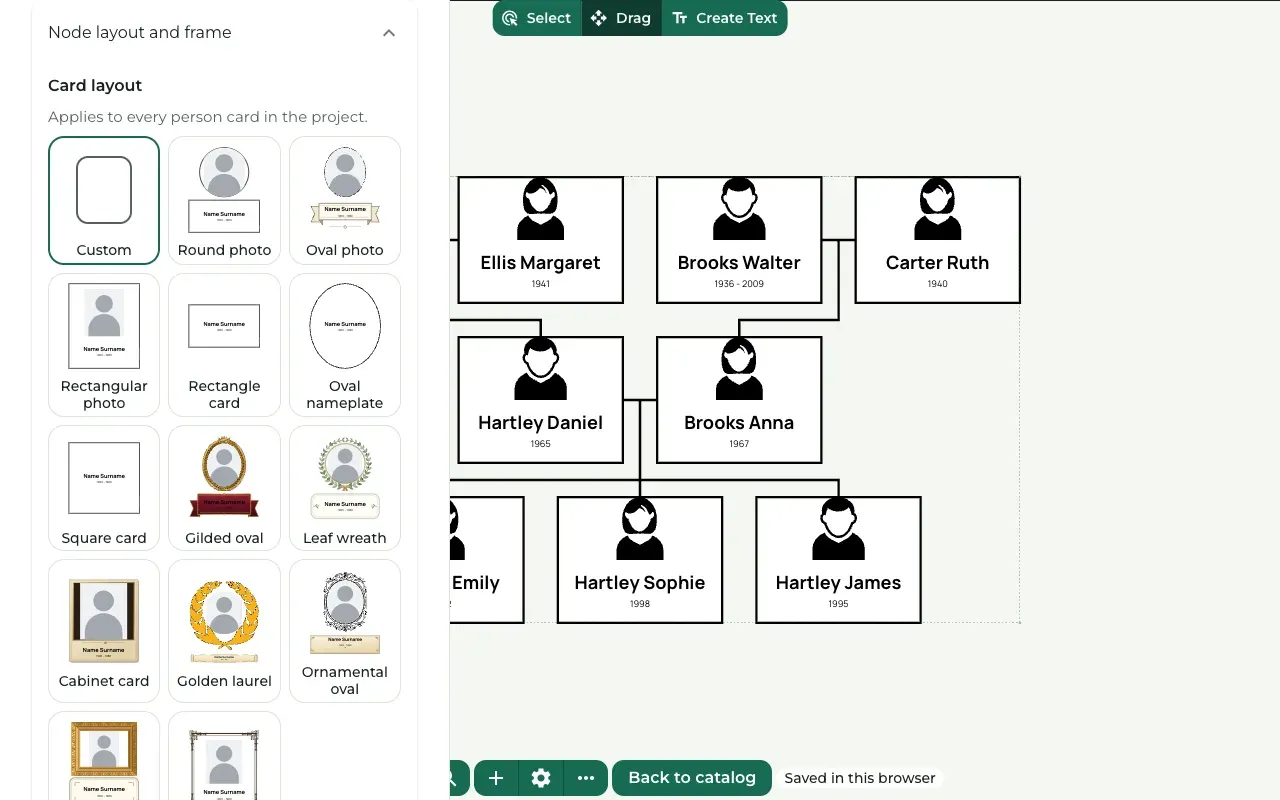
Where to find it: Settings (the gear button) → Settings → Node layout and frame
Node layout and frame holds the settings for all person cards together.
- Card layout offers ready-made card styles. Click one to use it for everyone.
- Person layout type sets what a card shows: the photo, the text, or both.
- Node form sets the card shape, and Person avatar form the photo shape.
- WIDTH and HEIGHT make every card wider or taller. Use WIDTH when long names do not fit.
Still stuck? Look for your question in the FAQ, browseall guides, or write to us.