
Your account
Create an account, sign in, reset a forgotten password, and find your plan and settings on your Profile.
An account keeps your family trees safe and lets you open them on any computer. You can try the free editor without one.
Create an account
Where to find it: Any Treeshy page → Create account (top right)
Press Create account at the top of any page.
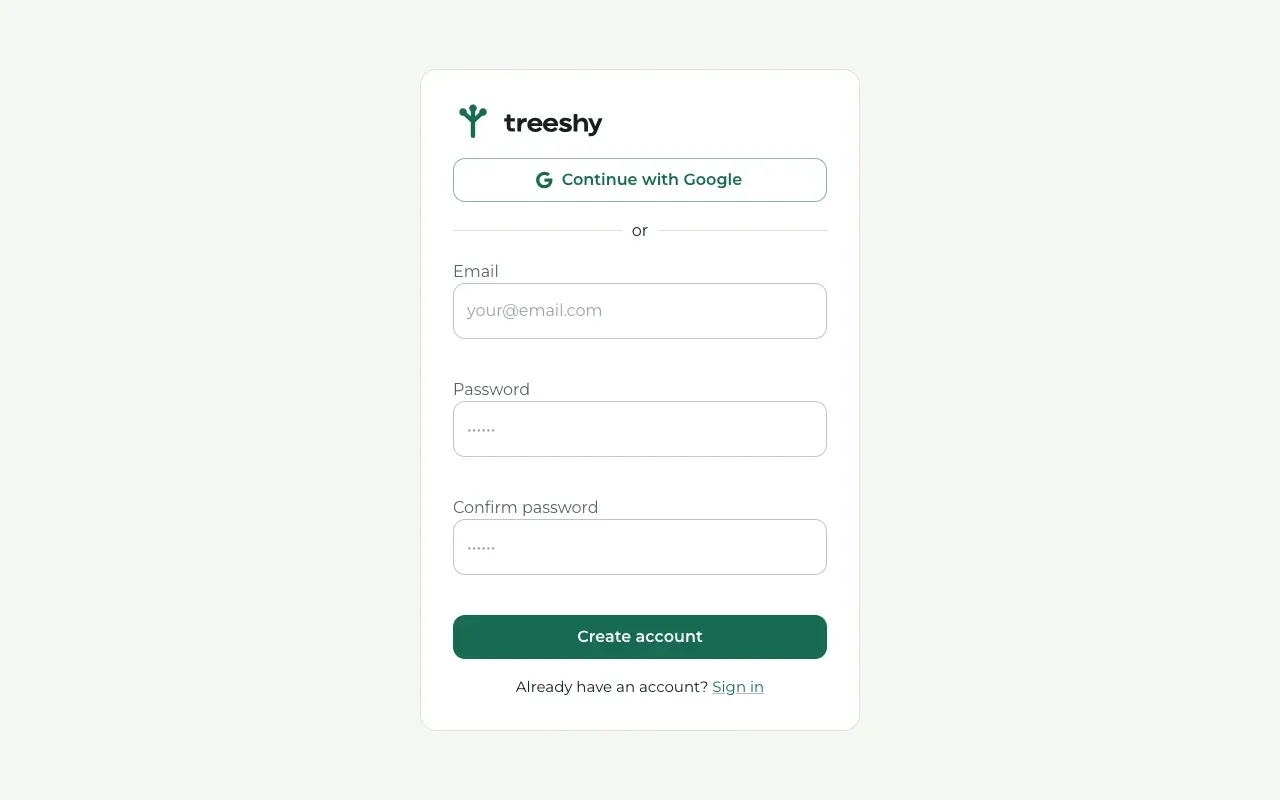
Press Continue with Google to use your Google account. Or type your Email, choose a Password of at least 12 characters, type it again in Confirm password and press Create account.
With an email address, Treeshy sends you a link to confirm it. Open the email and press Verify email. The link works for 24 hours.
Made your design with Treeshy? You already have an account
When you let Treeshy design your tree, the 6-digit code you entered created your account, without a password.
To sign in later, choose a password: press Forgot password? on the sign-in page and follow the next step.
Sign in
Where to find it: Any Treeshy page → Sign in (top right)
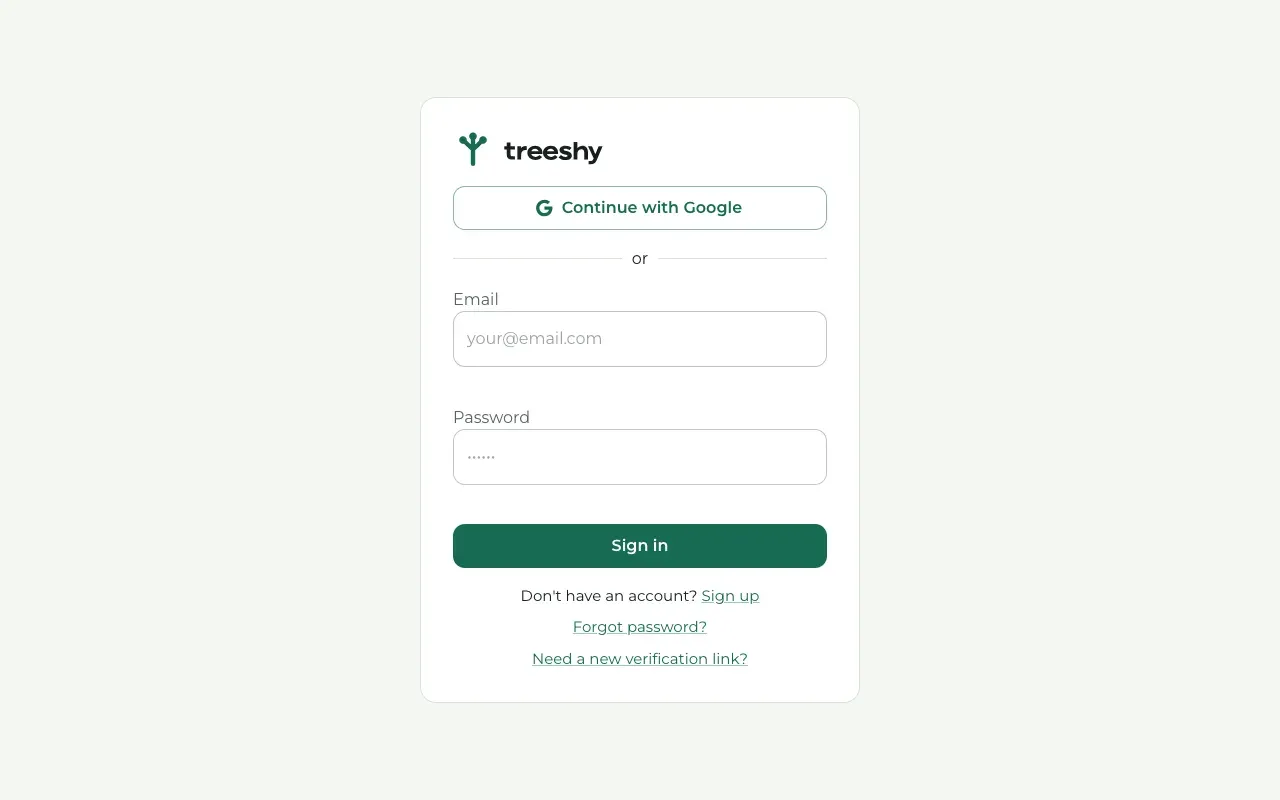
Press Sign in. Use Continue with Google, or type your Email and Password and press Sign in.
With a plan, Treeshy then opens your projects. Without one, it shows the plans you can choose from.
Forgot your password
Where to find it: Sign in → Forgot password?
Press Forgot password? under the sign-in form. Type your email and press Send link.
Open the email from Treeshy within one hour and choose a new password. Then sign in with it.
Did your account link expire before you confirmed your email? Press Need a new verification link? instead.
Your Profile
Where to find it: Account (top right) → Profile
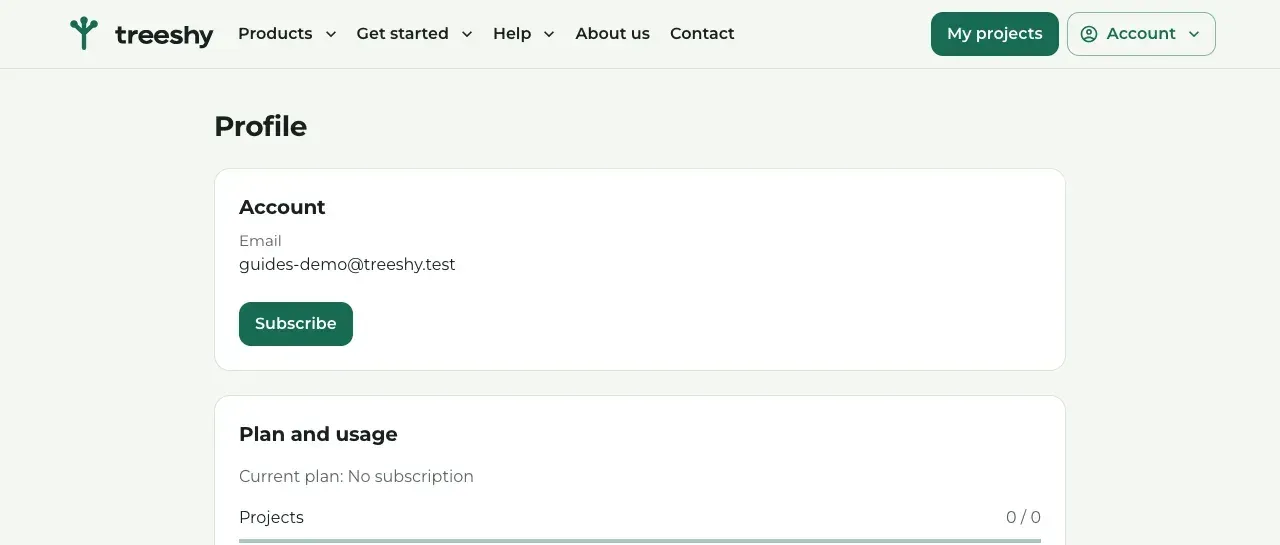
Press Account at the top right and choose Profile.
- Account shows your email address, and the button to subscribe or to manage your billing.
- Plan and usage shows your plan, how many projects you have, your storage and your AI credits.
- Danger zone holds Delete account.
To change the email address of your account, write to us.
Sign out or delete your account
Where to find it: Account (top right)
To sign out, press Account at the top right and choose Sign out.
To delete your account and your projects, open Profile and press Delete account under Danger zone. This cannot be undone. If you have a subscription, it ends at once, with no refund for the rest of the period. To keep using your plan until the end of the period instead, cancel it and delete your account later.
Still stuck? Look for your question in the FAQ, browseall guides, or write to us.